Here is some help for a question we get quite often – “My printer won’t work, what can I do?”

This happens more than one would think. It us usually pretty easy to get your printer back up and running, if you know a few of these tricks. Okay, they aren’t really that tricky, but they will do the trick. We find it amazing how many help guides there are out there with these same suggestions and how many times this topic has been discussed online. But, the bottom line is that people are still having trouble finding the information when they need it. So, we’ll take our turn and put it out there one more time.

So, you’ve created your wonderful document, or prepared that wonderful picture and you are ready to print. You click the print button and . . . nothing! What do you do now?

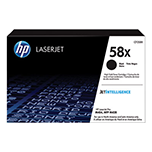
First, do the obvious. Check your printer cartridges. They may be out of ink. If they are you will need to buy more. If you do still have ink in your printer cartridges (your ink level monitor should keep you informed of the amount of printer ink you have) then move on and check the cables (USB or Parallel) that connect your printer to your computer. For that matter, you should check to make sure the printer is still plugged in and is receiving power – Don’t laugh, you’d be surprised how often the solution to the problem is making sure the printer is powered on.

If none of this works you are on to step 2, checking your print queue. There may be other documents that are clogging up your print queue and preventing your current document from reaching its destination, your inkjet printer. To check your print queue simply do the following

Click on START
Click CONTROL PANEL
Click PRINTERS AND OTHER HARDWARE
Click Printers AND FAXES
Double click on the icon with your printer’s name

This will open the documents window for your printer and you can clear any documents in your print queue by selecting CANCEL ALL DOCUMENTS from the PRINTER drop down menu.

If you get to your inkjet printer’s print queue and it is empty, or you clear it and it still does not work you should try to print a test page directly from your printer. This will give you a better idea of where the problem lies. If you can print a test page directly from your printer then the problem is in the communication (connection) between your computer and your printer or within the printer software (drivers) on your computer. If you can’t print a test page, then the problem is with your printer.

Most printers now have a button, or a sequence of buttons you can push to print a test page. As it is different for each printer model, you will need to consult your printer’s user manual for directions.

You can also try to print something from a different program. We would suggest you use a simple word processing, or even better, Wordpad or Notepad. If you can print from one of these two programs then the problem is within the program you are trying to print from.

Hopefully this is helpful, and can prevent some hardships on your part. We’re happy to help, so if you get to a point in your tests, or find out what the problem is and don’t know what to do next, give us a call.

And, if you have any suggestions to add to these, please feel free.

You can also try to print something from a different program. We would suggest you use a simple word processing, or even better, Wordpad or Notepad. If you can print from one of these two programs then the problem is within the program you are trying to print from.

Hopefully this is helpful, and can prevent some hardships on your part. We’re happy to help, so if you get to a point in your tests, or find out what the problem is and don’t know what to do next, give us a call.

And, if you have any suggestions to add to these, please feel free.